 Mosaizer Pro 12 -
Help Mosaizer Pro 12 -
Help |
Mosaizer Pro 12 -
Help
Transparent sources
Transparency We use png transparency
as a tile placement option Transparency is also seen in the little preview window
on top left, where the transparent parts are left out, exposing the 'chessboard'
pattern. This pattern is also well known in bitmap editors such as Photoshop and
Paintshop Pro, indicating an empty layer (no pixels). Transparency is likewise:
no pixels. In the picture above some examples are shown. Left: a PNG source file with a wrong transparency channel
(it sometimes happens), exposing a black or otherwise a completely weird pattern.
Middle: a PNG source file but the 'transparent' part appears to be
white, so here the transparent part was not defined at all. Right: a
correct PNG source file with transparency clearly shown (the chessboard pattern
reflects the transparent part of the picture). These files are the
best to use for transparency.
The example below shows
the result from a PNG file with transparency:
Pictures can
have different formats. The format is always reflected by its file extension.
Some examples:
When a PNG picture is
opened as a source file, and that picture has transparency information stored,
this transparency is used to determine whether a tile should be placed or not.
Transparent parts are skipped in tile placement.
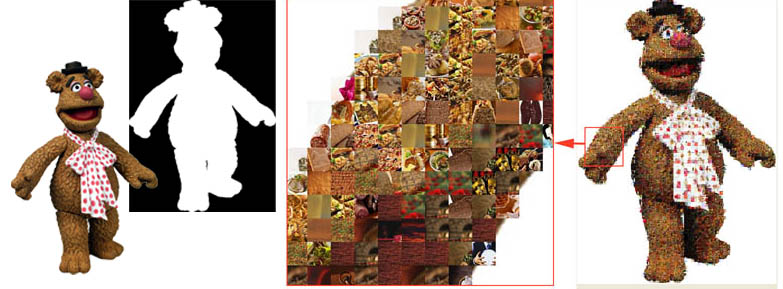
On the left the original PNG (bitmap) file is seen, where the transparent layer is shown as a black and white mask (we have extracted this layer in photoshop for explanation). The black parts are transparent (RGB pixel values = 0) and the white areas are opaque (RGB pixel values = 255). The transparent parts are skipped in mosaic tile placement (see detail in the middle). The transparency masks can have 256 shades of grey, enough to make a gradual transparency from 100% opaque to 100% transparent.
When PNG files are applied and you expect transparency effects, make sure there is transparency data stored in the picture. A PNG file with no transparency data can be opened in Mosaizer Pro but will not apply the transparency feature. It is then regarded as a normal bitmap.